One account library across your devices
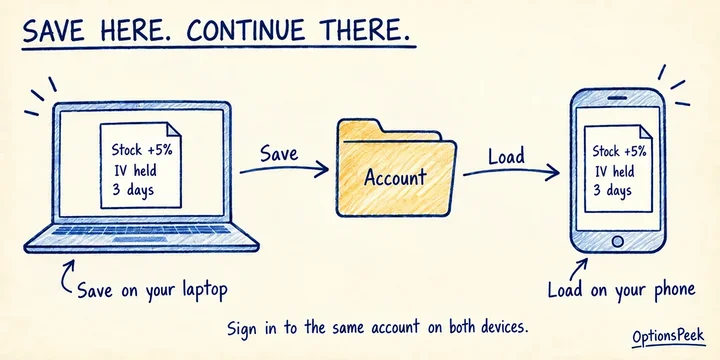
Save OptionsPeek scenarios to your account. Sign in, open Saved scenarios, and choose Account as the saved-scenarios location. Save a scenario there, then sign in to the same account on another device to load it.
Saving is an explicit action. Changing a field does not continuously save every edit. After loading a saved scenario, you can adjust the same contract and save the changes back to that record. Your list remains a collection of hypothetical setups to revisit.
Bring browser saves into your account
Your existing browser saves can move into the account library. In the Account view, choose Check browser saves for import, review the prompt, and choose Import browser saves. The import is your choice; signing in alone does not move the browser list.
Once the account confirms the import, unchanged browser originals are removed. Repeating an import of unchanged records does not create extra account copies. If an import fails or a browser record changes during the operation, that record is retained. Browser Undo remains available for the confirmed cleanup.
Choose what happens before signing out
If you have unsaved inputs when signing out, OptionsPeek offers Save and sign out, Discard and sign out, or Keep working. Save and sign out waits for the save to succeed. If it cannot save, your session and inputs remain available so you can retry or keep working.
The save uses your selected location. Choose Account when you want the result available on your other signed-in devices; Browser keeps it on this browser. Keep working returns you to the inputs you were editing.
Continue with the assumptions in view
Loading an account save restores the scenario you saved. It does not automatically turn an older market snapshot into a current quote. Check the contract, expiration, and market-data timestamp, adjust the values you want to use, and calculate when ready.
You can still rename saves and use Delete/Undo to organize the library. The same saved-scenario workflow is available while exploring the chart, so moving between tools does not require maintaining a second copy of the scenario.