Why one estimate is not always enough
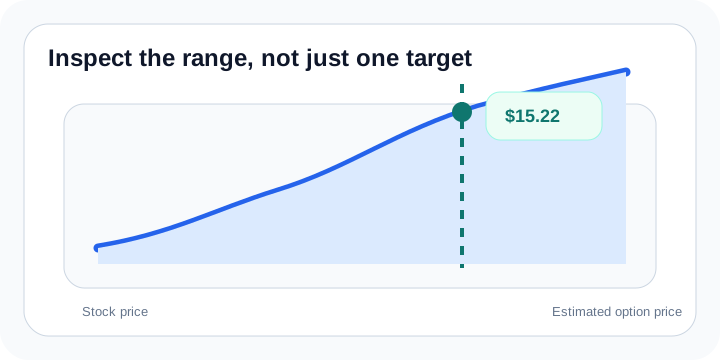
If the stock target is only a rough idea, a single option estimate can feel too narrow. The stock price chart lets you inspect a range instead of pretending one exact stock print is guaranteed.
That makes the chart useful for planning limit orders, comparing risk levels, and deciding whether the scenario still makes sense if the stock undershoots or overshoots your target.
What the chart shows
The chart plots stock price on the horizontal axis and estimated option value on the vertical axis. Selecting a stock price lets you inspect a point on that curve. The implied-volatility and elapsed-days controls change the assumptions used to build the same chart.
These are three controls for one scenario, so you can change one assumption at a time and see how the preview responds. Hold IV constant or choose a target IV, move the time horizon up to expiration, and use numeric entry when you want a precise value.
Open Explore charts from your scenario
Set up the contract and assumptions in the main calculator, then choose Explore charts beside the estimate or from the product menu. This opens the dedicated Explore scenario page with your working inputs. The main page keeps contract setup and results in focus.
The chart preview changes locally as you adjust the controls. Recalculate submits the current assumptions for a new estimate. Moving a slider does not fetch a fresh quote or save the scenario.
Return, save, or share
Back to scenario returns to the calculator with your working inputs. Review the submitted estimate and Greeks Breakdown, or continue to Profit / Loss, while keeping the scenario connected.
Use Save when you want to keep the current setup in the selected Browser or Account location. After loading and editing the same contract, saving updates that record. Share chart creates an OptionsPeek-branded image of the selected preview; supported devices open a share sheet and other browsers download the image.
Check the contract expiration and market-data timestamp before relying on an older setup. The curve and estimate describe your assumptions; actual option prices can differ.